
How to Customize Your Invoice Branding in Lunio
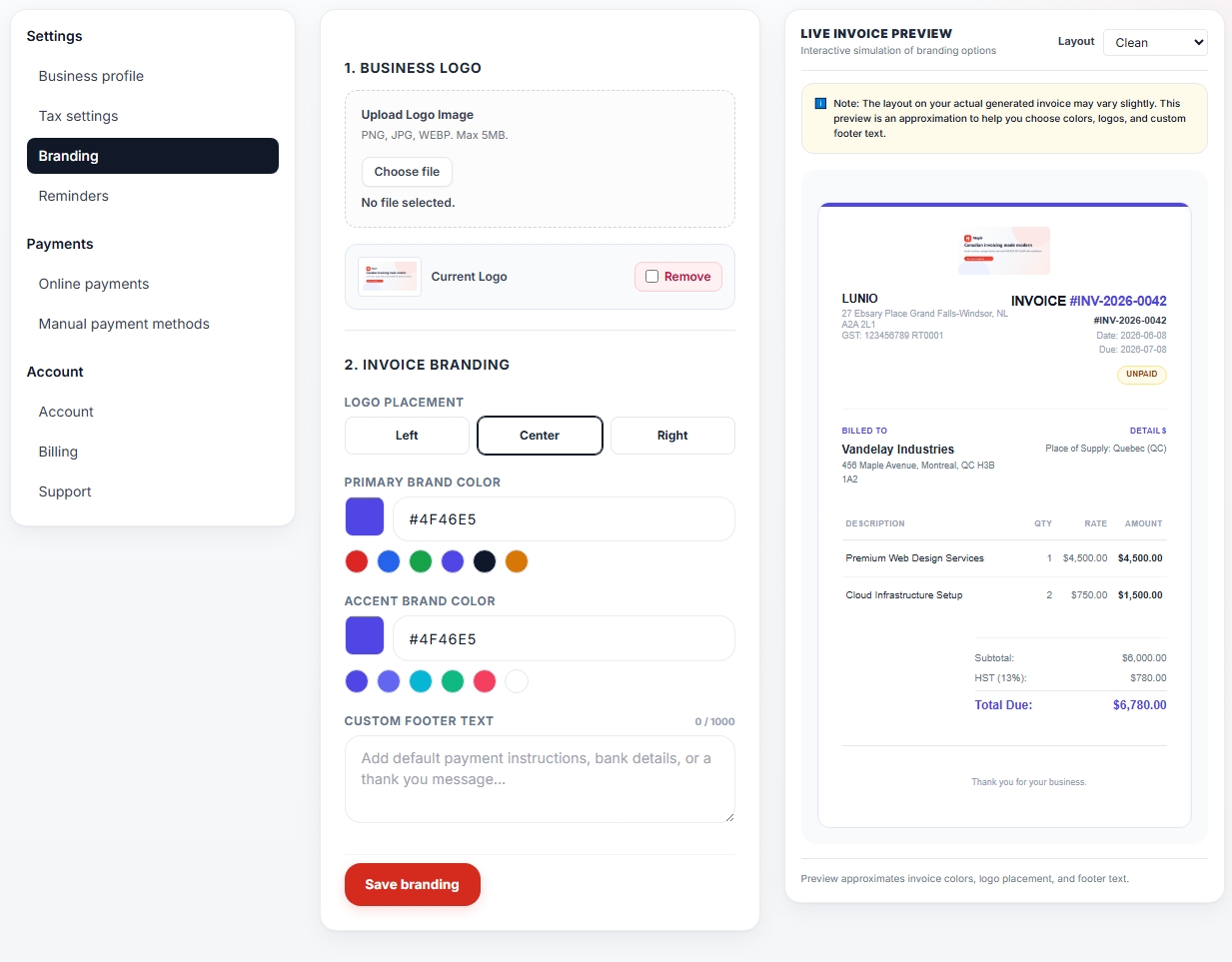
Professional invoices help your business look more trustworthy and memorable. With Lunio's Invoice Branding tools, you can personalize your invoices using your company logo, brand colors, footer text, and invoice templates.
Upload Your Business Logo
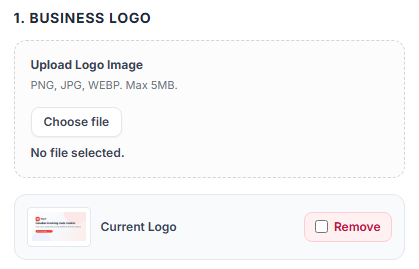
Navigate to:
Settings → Branding
Under Business Logo, upload your company logo.
Supported formats:
- PNG
- JPG
- WEBP
For best results, use a high-quality logo with a transparent background.
Choose an Invoice Template
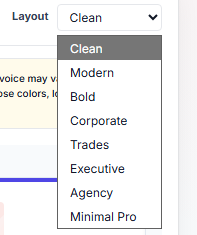
Lunio includes multiple invoice templates designed for different business styles.
Available templates may include:
- Clean
- Modern
- Bold
- Corporate
- Trades
- Executive
- Agency
- Minimal Pro
Select a template that best matches your brand and industry.
Customize Brand Colors
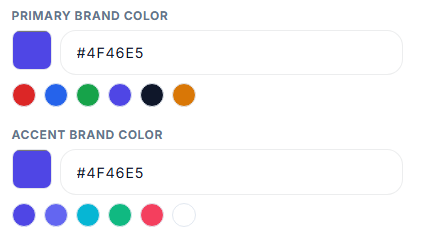
You can personalize invoice colors using:
- Primary Brand Color
- Accent Brand Color
These colors are applied throughout your invoices, including headings, totals, highlights, and other template-specific elements.
Tip: Use the same colors as your website, logo, or marketing materials for a consistent brand experience.
Position Your Logo

Choose where your logo appears on invoices:
- Left
- Center
- Right
Use the live preview to see how each position affects your invoice layout.
Add Custom Footer Text
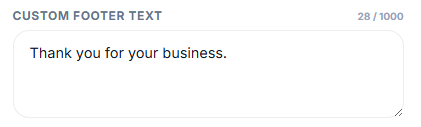
Footer text can be used for:
- Payment instructions
- Thank-you messages
- Business contact information
- Banking details
- Legal notices
Example:
"Thank you for your business. Please contact accounting@yourcompany.com with any questions regarding this invoice."
Use the Live Invoice Preview
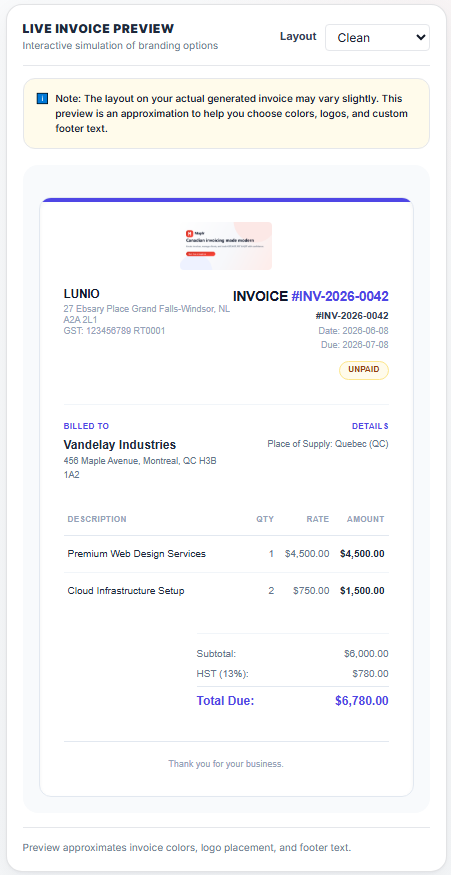
The Branding page includes a live preview so you can see changes before sending invoices to clients.
The preview updates as you adjust:
- Logo placement
- Brand colors
- Footer text
- Invoice template
Where Branding Appears
Your branding settings are automatically applied to:
- Invoice PDFs
- Invoice previews
- Public invoice links
This ensures your clients see a consistent and professional experience across all invoice formats.
Save Your Changes
When you're happy with your invoice design, click Save Branding.
Future invoices will automatically use your updated branding settings.